
User Manual- GPA Calculator V1.0
Client Access and Product Usage Guide
Prepared for: Colorado State University Global Campus
- Document Type: Client Product Guide
- Prepared by: EDMO Team
- Date: 12/5/2025
- Environment: EDMO GPA Calculator (Test Instance)
- URL: https://rwg.test.technolutions.net/manage/
- Account Manager Contact: Shreshtha Rajkotia –
- Email: shreshtha.rajkotia@goedmo.com
- Telephone: +91 99301 67331
1. Introduction
This document will help the Rowan University team explore and experience the EDMO platform through the EDMO Salesforce test environment. This is your interactive space to understand how EDMO calculates various types of student GPA from the submitted transcript.
2. What You Can Do in the EDMO Playground
This environment is fully configured to showcase how Colorado State University can use EDMO to:
- Calculate Student GPA
- Check for different transcripts submitted by the student under the dropdown
- Select different transcripts and click on Calculate GPA button
- Calculate different GPA types by selecting from the Config tab
3. Sample Transcripts
We’ve added examples that reflect scenarios relevant to Rowan University:
4. Getting Started (Step-by-Step)
Navigate to Rowan’s Grad Slate Test Environment to experience EDMO’s GPA Calculator. Upon logging in, your homescreen would have an additional GPA Configurator tab if you have got the admin access!
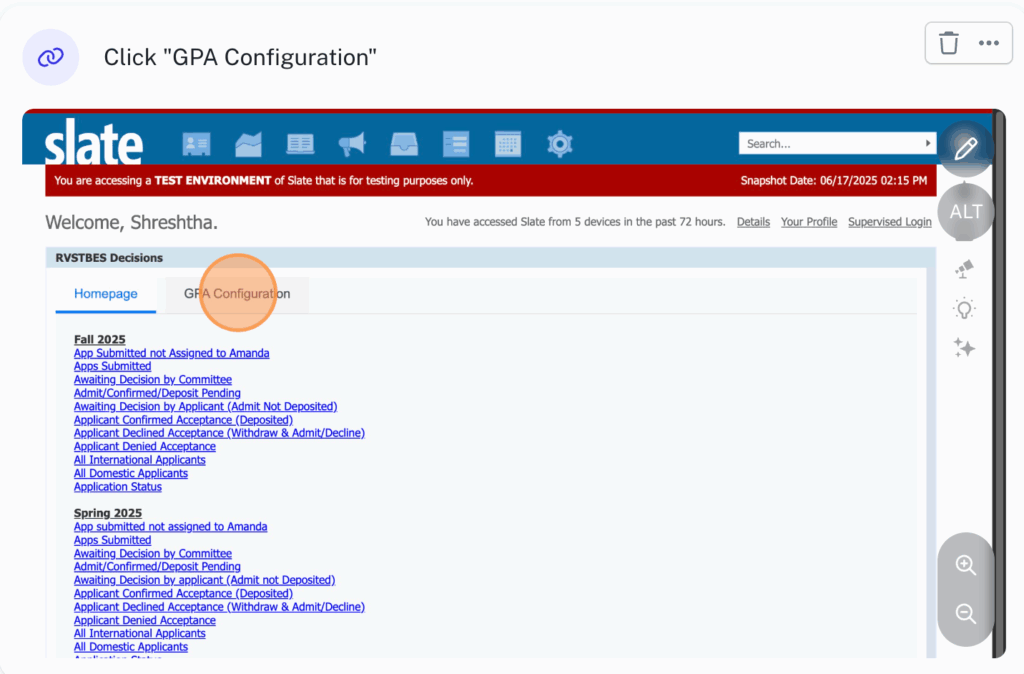
Click on the GPA Configuration Tab to make any changes to your GPA Calculator Settings.
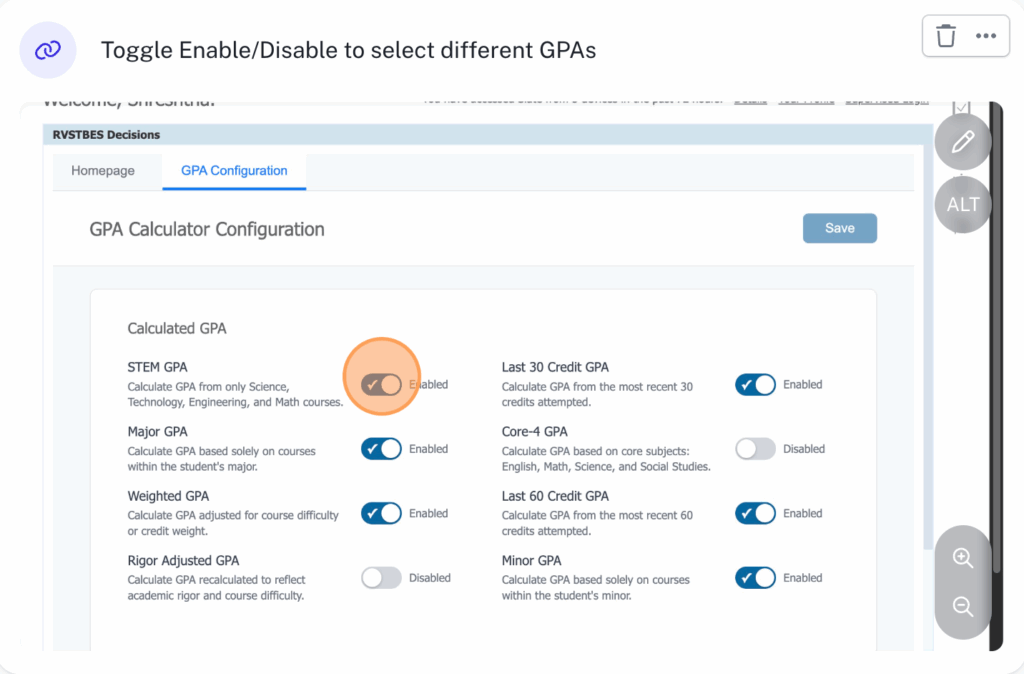
Toggle On/Off to select or de-select any of the GPA options.
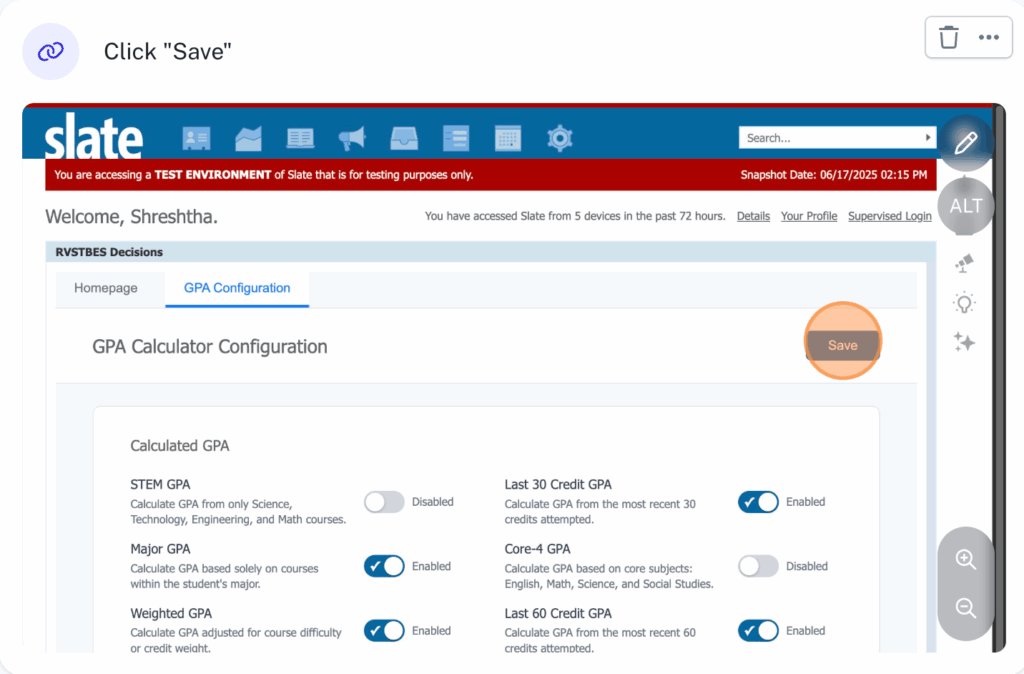
Upon making changes to the GPA Settings (For e.g. selecting the scale of your choice, GPAs etc.), click on the Save button to save the final changes.
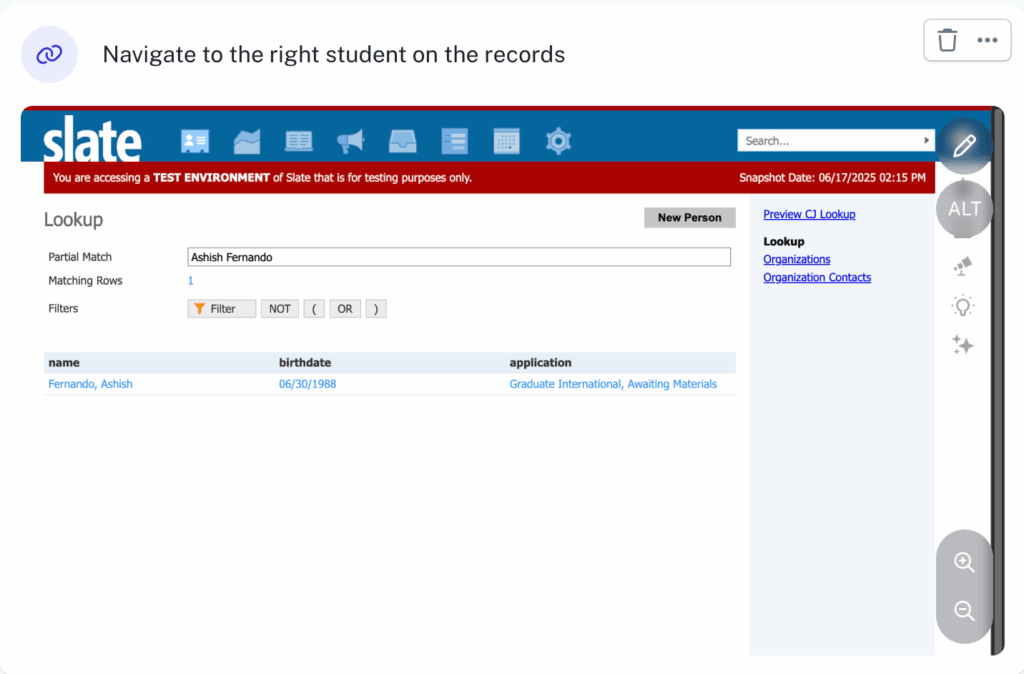
To upload a new application, click on the new application button on the top right corner of the dashboard
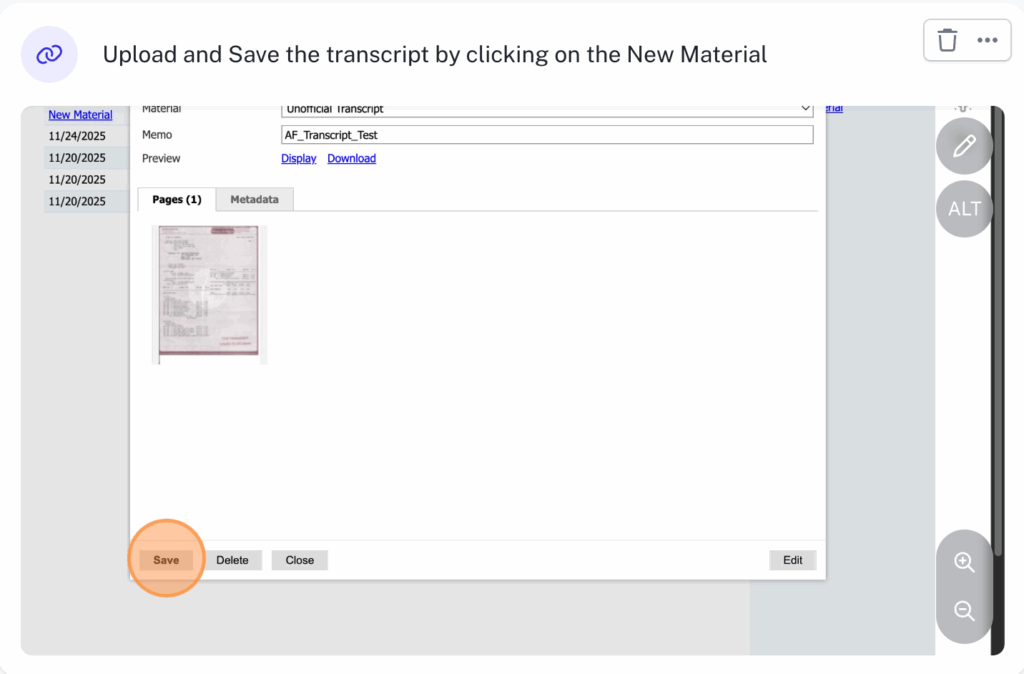
Go to the student’s record, click on the material tab and then click on the New Material link to upload and save the newly uploaded transcript of your choice.
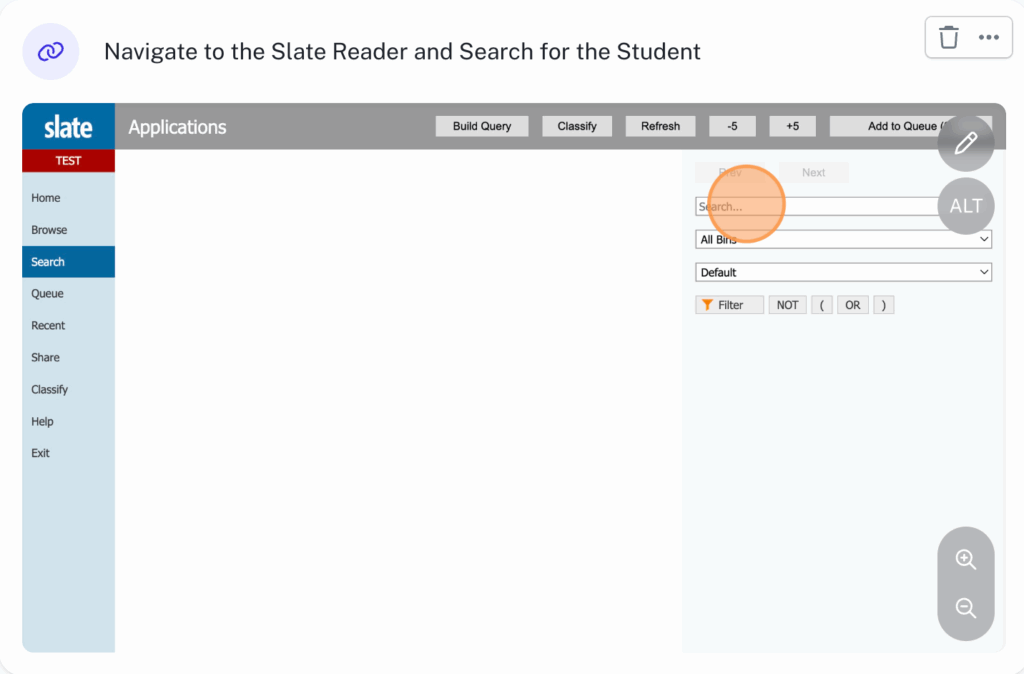
Navigate to the Slate Reader and click on the Search tab to search for the student of your choice and select the student from the list.
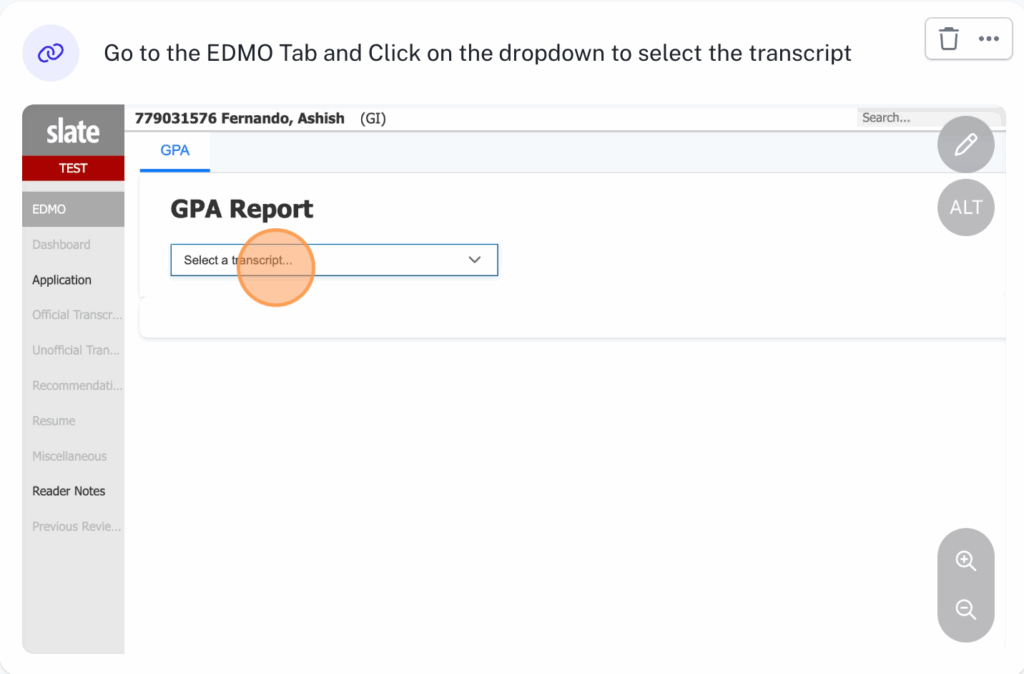
Upon clicking the dropdown, you should be able to Click on Calculate GPA button to trigger a new GPA Calculation process or view the calculated GPA results of a previously calculated transcript.
5. Key Features to Explore
- GPA Configuration where you can enable/disable different GPA Types
- Ability to select from different available scales
- Optical Character Recognition (OCR) for scanned transcripts
6. Known Limitations/Expectations
- TAT for OCR: TAT for OCR on staging environment is 1 business day. The same will be brought down on production.
- File Type Handling: Currently our platform is only capable of handling pdf files. We are actively working on introducing other file types (Eg. Doc, jpg, png etc.)
- Large File Handling: While the platform can handle transcript file sizes of upto 10MB, we recommend uploading transcripts no larger than 4MB to ensure efficient functionality.
- Complicated Transcript Handling: Please note that there are some transcripts that are inherently complicated because of their structure. While our platform handles such transcripts better than expected, sometimes the accuracy may not be at 100%. Please note, this is also because you currently only have access to the test environment
7. Support Contacts
- Technical Support: support@goedmo.com
- Product Owner:
- Vishal Rao – vishal.rao@goedmo.com
- Vishal Rao – vishal.rao@goedmo.com